
How to Read a Histogram in Photography Without Chasing a Perfect Shape
Your camera screen looks bright in a dim room and almost unreadable in full sun. Neither situation tells you much about the actual tones in the photograph. A histogram gives you another way to check them, but only if you read it in context.
I'm Austen Hunter, the photographer behind Austen Hunter Photography. For portrait work, I want to protect the detail that matters in the face and clothing while keeping the mood of the image. The histogram helps with that decision; it doesn't decide what the portrait should look like.
Key Takeaways
|

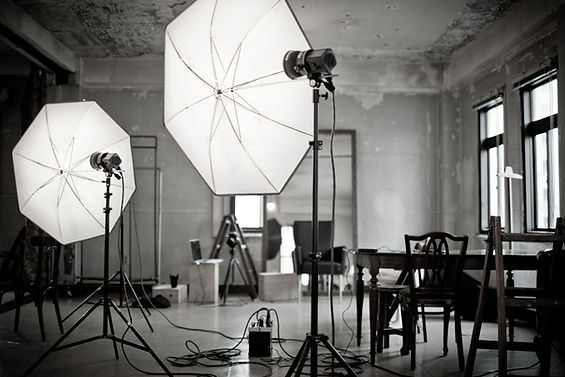
This illustrative still life contains dark, middle, and light objects. Those subject tones influence a histogram even when the exposure is intentional.
Read the Horizontal Axis First
A histogram counts the tonal values in an image. Darker values sit toward the left, brighter values toward the right, and midtones lie between them. A taller peak means more pixels share those values; it does not mean that part of the photograph is physically higher or brighter.
The graph has no map of the image. A peak on its left does not mean the left side of your photograph is dark. You need to look at the photograph or use clipping alerts to find the affected area.
Stop Looking for a Perfect Mountain
A person in dark clothing against a dark background can produce a left-heavy graph. A white shirt against a bright wall can produce a right-heavy one. Neither is automatically a mistake.

These are schematic examples, not measurements from the photograph above. They show why pushing every histogram into the center can work against the image you intended. Canon makes the same practical point in its guide to photographing snow: bright subjects should register as bright tones.
Check the Edges and the Important Detail
Values at the left or right limit can indicate clipped shadows or highlights in the displayed image. Look for missing detail where it matters: a bright cheek, a white uniform, or a dark jacket you want to show clearly.
A small reflection or a deliberately black background may be acceptable. The graph alone cannot tell you which pixels matter to your photograph.
What You Notice | What to Check Next |
|---|---|
Most tones sit toward the left | Is the scene actually dark, or is the subject darker than intended? |
Most tones sit toward the right | Is it a bright scene, or are important highlights losing detail? |
Data piles against an edge | Use the image and clipping alerts to locate the affected area |
One RGB channel reaches its limit | Inspect bright colors and skin; the overall brightness graph may hide a channel problem |
Make the Smallest Useful Exposure Change
If important highlights are too bright, reduce exposure and take another frame. If the subject is too dark and there is highlight room, increase exposure. In an automatic exposure mode, exposure compensation may be the simplest control; its behavior in manual mode depends on the camera and Auto ISO settings.
In manual exposure, choose the control that preserves the photograph you need. A slower shutter admits more light but may introduce motion blur. A wider aperture admits more light but reduces depth of field. ISO changes image brightness and the available tradeoffs; it does not put more light through the lens. My exposure triangle guide explains those relationships.
If the face needs more light while the sky is already too bright, shifting exposure alone may not preserve both. Change the angle, choose a different background, or add fill. My reflector and negative-fill guide helps you decide whether changing the light is more useful than changing the settings.
“Read the histogram against the photograph you want to make. Protect the important detail, not an imaginary perfect curve.” — Austen Hunter
Understand What Your Camera Is Showing You
On many cameras, the playback histogram reflects a processed preview, including picture-style and white-balance choices, even when you record RAW. It is a warning tool, not a precise inventory of every recoverable value in the RAW file. Check your camera's manual for its display behavior.
Likewise, an editing application's histogram reflects the current rendering and adjustments. It is not simply an untouched sensor-data graph. Adobe's Develop-module documentation explains using the Histogram panel to assess tones and preview clipping.
RAW may give you room to recover a highlight that looked clipped in a preview, but that is not a promise. Review the actual file instead of assuming you can repair everything later.
Frequently Asked Questions
Should the Histogram Fill the Whole Width?
No. A low-contrast scene may occupy a narrower range. Expanding it just to fill the graph can change the mood or make the image look harsh.
Is a Tall Peak a Problem?
Not by itself. It means many pixels have similar values. A large, evenly lit background can produce a peak without an exposure error.
Should I Use the Brightness or RGB Histogram?
Brightness is a useful first check. RGB can reveal a color channel reaching its limit even when the overall graph seems comfortable. Use both when your camera provides them.
Can a Histogram Tell Me Whether the Eyes Are Sharp?
No. It describes tones, not focus or motion blur. Magnify a test frame to check the eyes separately.
Try It Before Your Next Session
Photograph a dark object and a light object under steady light. Compare the image and histogram, then make a small exposure change and observe what moves. Next, use my exposure guide to choose which camera control to change without losing the sharpness or depth of field you need.


Comments